
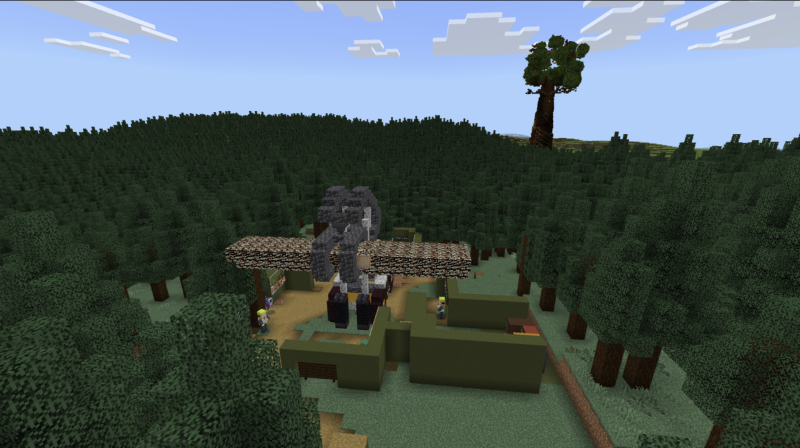
Students will solve challenges, think creatively, and make decisions about sustainable forest management.
They can experiment with wood processing, design and build structures, and see firsthand how science, technology, and innovation drive New Zealand’s forestry industry.
Every block they place or tree they grow becomes part of an exciting journey of problem-solving and discovery!
How to get started?
Step 1: Download Discover Forestry Minecraft World.
Step 2: Explore our Discover Forestry Minecraft World, engage with the NPC’s to learn and complete the tasks. Your matauranga will grow along with your knowledge and skills!
Step 3: Work alone, as a group or even as a whole class to plant, grow, harvest, process and build in Discover Forestry World.
Step 4 Create modern products made of sustainable wood using a range of technology, science and mātauranga.
If you don't have or have an old version of Minecraft, please download the latest version.
Follow the instructions below to download the world. Please note that downloading Minecraft can be different depending on your operating system and device.
Take a look at the troubleshoot page if you get stuck.
Click on the Minecraft World image to download the world.


Click the download all button from Google Drive.
Find the file in your File Explorer (PC) or Finder downloads (Mac) folder and double click to open in Minecraft.
On a Mac, you may have to right click on the file, select open with, click other, find “Enable:all applications before selecting Minecraft Education.
The world should automatically open in Minecraft.


Licensing
Minecraft Education is free under the MOE Microsoft agreement. It's best to talk to either whoever looks after your licensing, your technology support provider or alternatively click email: nzschools@cyclone.co.nz
Cyclone looks after New Zealand's Microsoft licensing.
If you're already a Microsoft School, it could be as easy as turning it on. Best to talk to your school's computer technician support or provider.
If you're a Google school, please ask your provider for a single sign on. Then you can use your students' Google accounts to login.